









Most scanning sessions are not slowed down by one dramatic failure. It is usually the small stuff: the workbench gets captured with the part, tracking drops on a plain surface, or you reopen a project and have to generate the mesh again.
EXStar Hub 2.0 is built around those moments. The updated EXStar Hub software adds Real-Time AI Isolation and 3D Gaussian Splatting, then backs them up with improvements to tracking, meshing, calibration, processing, and capture speed. Here is what is new and where each update fits into the workflow.
What's New in EXStar Hub 2.0?
| Update | Why It Matters |
|---|---|
| Real-Time AI Isolation | Helps keep unwanted background data out of supported IR scans |
| 3D Gaussian Splatting (3DGS) | Uses images and scan-derived geometry to create more visually realistic 3D results |
| Super Hybrid Alignment | Gives users more flexible Feature and Marker tracking across IR and laser modes |
| Saved Mesh | Keeps a generated mesh in the project when moving between Scan and Post-Processing |
| Wireless Calibration | Lets users calibrate without changing to a wired connection first |
| IR Mode Scan Speed Boost | Increases IR scanning from 20 FPS to 30 FPS |
| Algorithm Optimization | Reduces peak memory use during mesh generation by processing calculations in batches |
Real-Time AI Isolation: Capture the Object, Not the Background
When 3D scanning small parts by hand, your fingers may accidentally be captured along with the object. On a cluttered workbench, the turntable, tools, or work surface can also end up in the 3D scan. Although these unwanted data can be removed during post-processing, cleaning them up can be time-consuming.

Real-Time AI Isolation in EXStar Hub 2.0 uses AI to identify the target object and highlights areas to be filtered out with an intuitive green mask. During supported IR scanning workflows, it keeps the focus on the object you want to capture by automatically filtering out unwanted background data.
Key Benefits of EXStar Hub 2.0 AI Isolation
- Less Manual Cleanup: Spend less time removing unwanted data during post-processing.
- Recover Missed Details: Add positive points to restore parts of the object that AI did not select.
- Check Scan Coverage: Identify areas that may need additional scanning more easily.
- Simpler Setup: Scan in everyday environments without carefully arranging a clean background.
Think of it as AI object segmentation built directly into the scanning process. Instead of relying on background removal for 3D scanning during post-processing, you can define which data to keep as you scan. By reducing unwanted data at the source, this AI-powered 3D scanning software helps produce cleaner scans and simplifies post-processing.
How EXStar Hub 2.0 Real-Time AI Isolation Works
Step 1: Enable Real-Time AI Isolation
Switch to IR scanning mode, then enable Real-Time AI Isolation in Scan Settings before starting the scan or while scanning is paused. The feature cannot be switched on or off during active capture.

Step 2: Check the Initial Selection
Once enabled, the texture-camera window and on-screen instructions appear on the right. The software automatically selects the object near the center of the view as the target to keep, using a semi-transparent green mask to mark areas to be filtered out. You can adjust the selection directly in the texture-camera window.
Note: The texture camera provides images for AI object segmentation and is independent of texture acquisition. Texture capture does not need to be enabled to use this feature.

Step 3: Refine the Selection
If the initial AI isolation result is inaccurate, add points to the mask to control which areas are retained or filtered out.
- Keep an area (positive point): Left-click the area you want to retain.
- Remove an area (negative point): Right-click the area you want to filter out, or hold Ctrl (Windows) / Command (macOS) and left-click.
- Reset the selection: Click Clear to remove the current mask. After clearing, all data from the current frame will be filtered out until you select a target again.
If AI 3D segmentation misses part of the object, add a positive point to include it. If the background is mistakenly selected as part of the target, add a negative point to exclude it. Your adjustments apply to scan data captured from that point forward.
EXStar Hub 2.0: Requirements and Compatibility
- Supported modes: Currently available only in IR scanning mode, compatible with Feature Alignment and Texture Alignment.
- Graphics card: An NVIDIA RTX 3060 or higher-specification graphics card is required.
- Operating system: Available on Windows only. macOS support is in development.
- Recommended object size: 50 × 50 × 50 mm to 300 × 300 × 300 mm. There is no fixed size limit in the software.
- Scanning tip: Pay attention to object edges, thin structures, and areas that blend into the background to avoid filtering out important details.
3D Gaussian Splatting (3DGS): Stunning Realism, Precise Geometry
A clean mesh is the right answer for many jobs. But sometimes the goal is not only to show the shape of an object. You also want it to look like the real thing, with its color, finish, and visual character intact.
That is where 3D Gaussian Splatting (3DGS) comes in. EXStar Hub 2.0 supports 3D Gaussian Splatting, combining high-precision 3D scanning data with realistic rendering to create lifelike digital representations of real-world objects.
Using 3D scan data for 3DGS reconstruction provides a reliable geometric foundation for capturing an object's shape and structure. Compared with traditional 3D mesh models, which are well suited for detailed editing and modification, 3DGS can better represent complex visual details, such as reflections and fine textures, depending on the input data and reconstruction quality.

This makes 3DGS a useful option for realistic 3D visualization and digital scene presentation, especially when capturing the appearance of real-world objects is a priority.
Other EXStar Hub 2.0 Workflow Updates
In addition to AI Isolation and 3DGS, EXStar Hub 2.0 introduces several improvements to the 3D scanning workflow, including more flexible alignment, saved meshes, wireless calibration, faster scanning, and optimized mesh generation.
Super Hybrid Alignment: More Flexible Laser Scanning
Super Hybrid Alignment combines feature-based and marker-based alignment, giving users more options for 3D laser scanning. By using both surface geometry and markers, it also expands the possibilities for marker-free scanning.
Dark, glossy, transparent, or low-feature objects may still require scanning spray, markers, or a more deliberate scan path for better results.
Saved Mesh: Resume Post-Processing More Easily
EXStar Hub 2.0 saves the generated 3D scan mesh to the project, allowing users to switch between Scan and Post-Processing without regenerating the mesh each time. Imported meshes can also be saved, making it easier to continue working on a project.
Note: Each project can store only one mesh. Importing a new mesh replaces the existing one.
Wireless Calibration: No Wired Connection Needed
Users can now calibrate compatible devices over a wireless connection without switching to wired mode. The calibration process remains the same, making setup more convenient and keeping the wireless scanning workflow uninterrupted.
Faster Wireless Scanning: Up to 30 FPS
The update improves frame rates in supported wireless scanning modes, making real-time data capture smoother.
- IR scanning (non-texture mode): Increased from 20 FPS to 30 FPS. Texture mode remains largely unchanged.
- Laser feature scanning: Increased from 20 FPS to 30 FPS.
Note: At the same working distance, wireless scanning has a slightly smaller field of view than wired scanning due to image cropping.
Algorithm Optimization: More Efficient Mesh Generation
EXStar Hub 2.0 optimizes 3D mesh generation by processing calculations in batches. This reduces peak memory usage and helps improve stability when processing complex or large datasets, supporting a more reliable workflow from point cloud to mesh.
Together, these updates make scanning and post-processing more flexible and efficient. 3D Gaussian Splatting (3DGS) also combines image details with scan geometry to help create 3D reconstructions with realistic visual appearance and geometric information.
EXStar Mobile: 3D Scan App for iPhone/ iPad/ Android
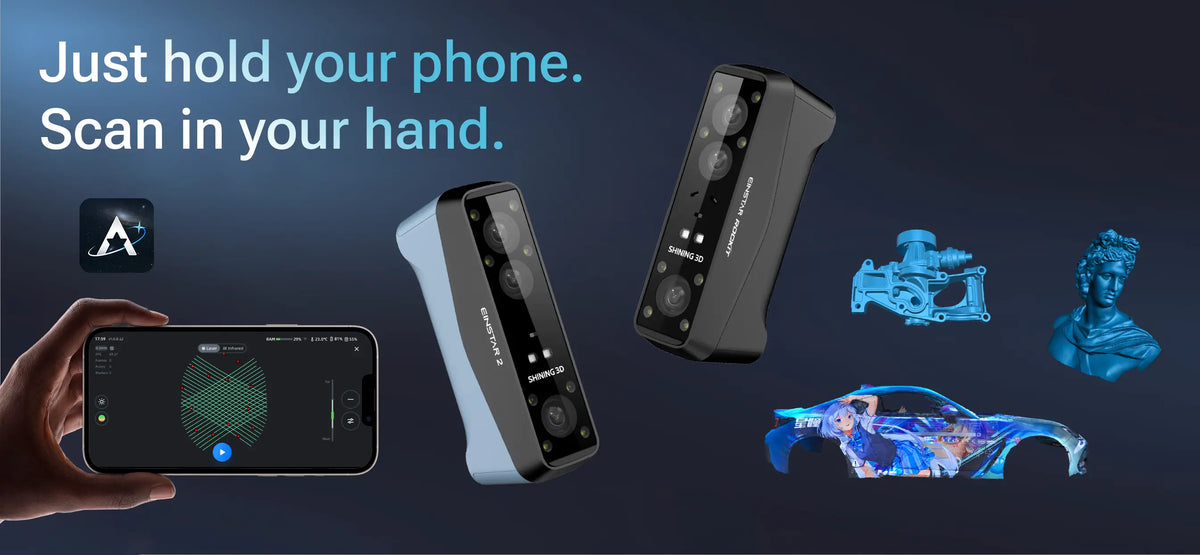
Take 3D scanning beyond the desktop with the EXStar Mobile App. Designed for compatible EINSTAR Rockit and EINSTAR 2 3D scanners, the app is part of EINSTAR's digital workflow, letting you capture, edit, and process 3D data directly on your mobile device.
Whether you're looking for a 3D scan app for iPhone or a 3D scanning app for Android, EXStar Mobile gives you the flexibility to scan at home, in the studio, or on the go.

What You Can Do with EXStar Mobile
- Multiple Alignment Modes: Choose Marker, Feature, Hybrid, Texture, or Global Markers alignment to suit different objects and scanning scenarios.
- 3D Scan Editing: Select or delete unwanted point cloud data, invert selections, rotate the model view, and pause or resume scanning.
- Wired and Wireless Connections: Connect compatible EINSTAR 3D scanners by cable or through the scanner's built-in Wi-Fi hotspot. QR code pairing and remembered devices make reconnecting easier.
- Mobile Processing: Generate 3D meshes and 3DGS results directly on your mobile device.
- Desktop Workflow: Transfer projects to EXStar Hub for further editing and post-processing.
- Cloud Sharing: Upload processed models and 3DGS results for viewing, downloading, and sharing.
EXStar Mobile lets you capture and process 3D data on the go, then transfer projects to EXStar Hub for further editing and post-processing. This mobile-to-desktop workflow gives you the flexibility to scan beyond your workstation and continue refining your 3D data whenever you need more advanced tools.
EXStar Mobile System Requirements
Check your device specifications before using EXStar Mobile. Minimum and recommended requirements vary by device.
| Device | Minimum Requirements | Recommended Requirements |
|---|---|---|
| Android | Snapdragon 8 Gen 2 or later; Android 15.0 or later; 8 GB RAM or more | Snapdragon 8 Gen 4 or later; 12 GB RAM or more |
| iPhone | A15 chip or later; iOS 26 or later; 6 GB RAM or more | A17 chip or later; 8 GB RAM or more |
| iPad | iPad (A16) or later; iPadOS 26 or later; 6 GB RAM or more | — |
| iPad mini | iPad mini (A17 Pro) or later; iPadOS 26 or later; 6 GB RAM or more | — |
| iPad Air | 2022 model (M1) or later; iPadOS 26 or later; 6 GB RAM or more | 2024 model (M2) or later; 8 GB RAM or more |
| iPad Pro | 2021 model (M1) or later; iPadOS 26 or later; 6 GB RAM or more | 2022 model (M2) or later; 8 GB RAM or more |
Conclusion
EXStar Hub 2.0 streamlines the 3D scanning workflow by reducing repetitive tasks and simplifying key steps. Real-Time AI Isolation helps remove unwanted data during scanning, while scan-guided 3DGS delivers more realistic visual results while preserving the underlying geometry. Other updates further improve tracking, meshing, calibration, and capture for a smoother overall experience.
For compatible EINSTAR users, these improvements make it easier to move from physical objects to point clouds, meshes, and visually rich 3D results. Visit the official EXStar Hub download page for the latest version and supported system requirements.
Download the latest EXStar Hub version and EXStar Mobile from the official EINSTAR Download Center. If you have questions or need assistance, contact us
Download EXStar Hub 2.0 here for your EINSTAR 2 & EINSTAR Rockit 3D Scanner
FAQ
Q1: What is EXStar Hub 2.0?
EXStar Hub 2.0 is updated 3D scanning software for compatible EINSTAR workflows. It supports scan capture, alignment, point-cloud processing, mesh generation, and visual outputs such as 3DGS.
Q2: What does Real-Time AI Isolation do?
Real-Time AI Isolation identifies the object you want to retain and filters unwanted background data during supported IR scans. It can also filter fingers that appear while holding or rotating a small object.
Q3: Does Real-Time AI Isolation change texture capture?
No. The texture camera is only used to identify the target and unwanted areas. It does not affect texture acquisition or texture alignment.
Q4: Is 3DGS the same as a mesh?
No. A mesh uses connected vertices, edges, and faces to describe a surface. 3DGS represents an object with many Gaussian elements to create a detailed visual result. Both can come from a scan, but they are designed for different uses.
Q5: Is EXStar Hub available for Mac?
An EXStar Hub Mac version is available for supported workflows. Real-Time AI Isolation, however, is still in development for Mac and currently requires a Windows system with an NVIDIA RTX 3060 or higher GPU.
Share:
CAD vs 3D Modeling vs 3D Scanning: Understanding the Differences